
1Install the app
Log in to your Shopify store admin and open the app's page on the Shopify App Store:
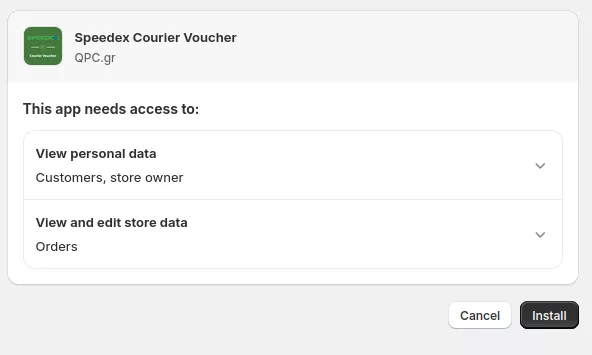
Then click the Install button on the page that opens:
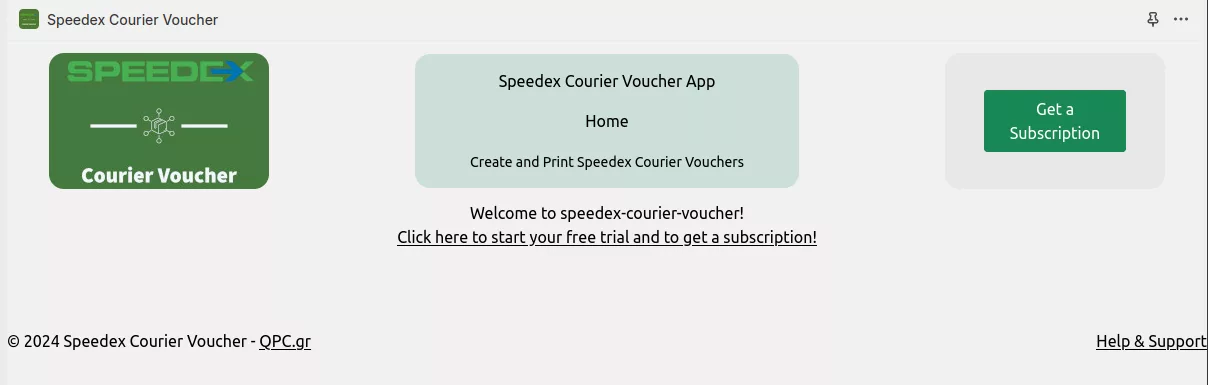
Once the app is installed, you'll be taken to the app's home page inside your Shopify store:
2Subscription & free trial
Click either the Click here to start your free trial and to get a subscription! link or the Get a Subscription button. You'll be taken to the subscriptions page:
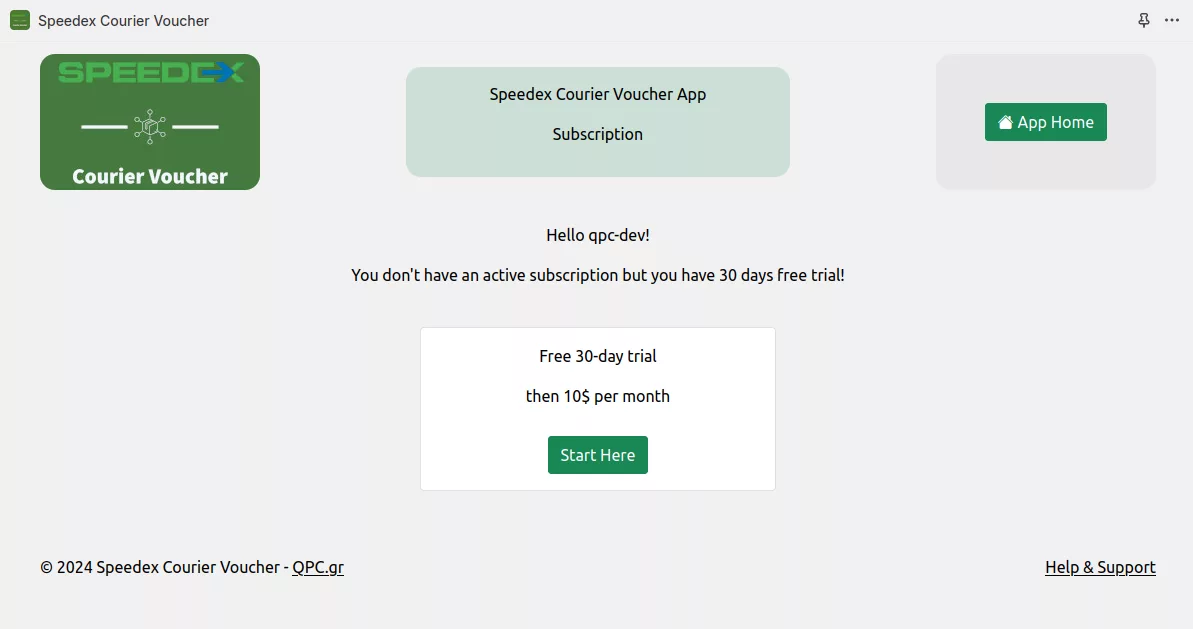
Click Start Here in the box titled “Free 30-day trial” to start your 30-day free trial.
After the free trial, the app costs $10 per month, billed through your Shopify account.
You'll then be asked to approve the free trial and the monthly charge that follows it:
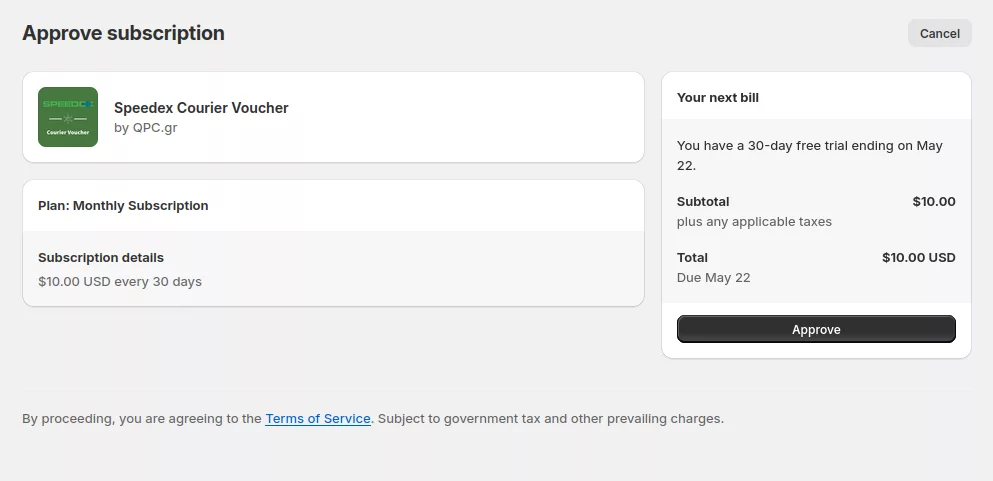
Click Approve. You'll be taken back to the app's home page:
3Speedex credentials
One last step before you can create Speedex Courier vouchers: enter your Speedex API credentials. If you don't have them yet, ask the Speedex branch you work with for API access.
Click the set your Speedex API credentials link or the App Settings gear button to open the settings page:
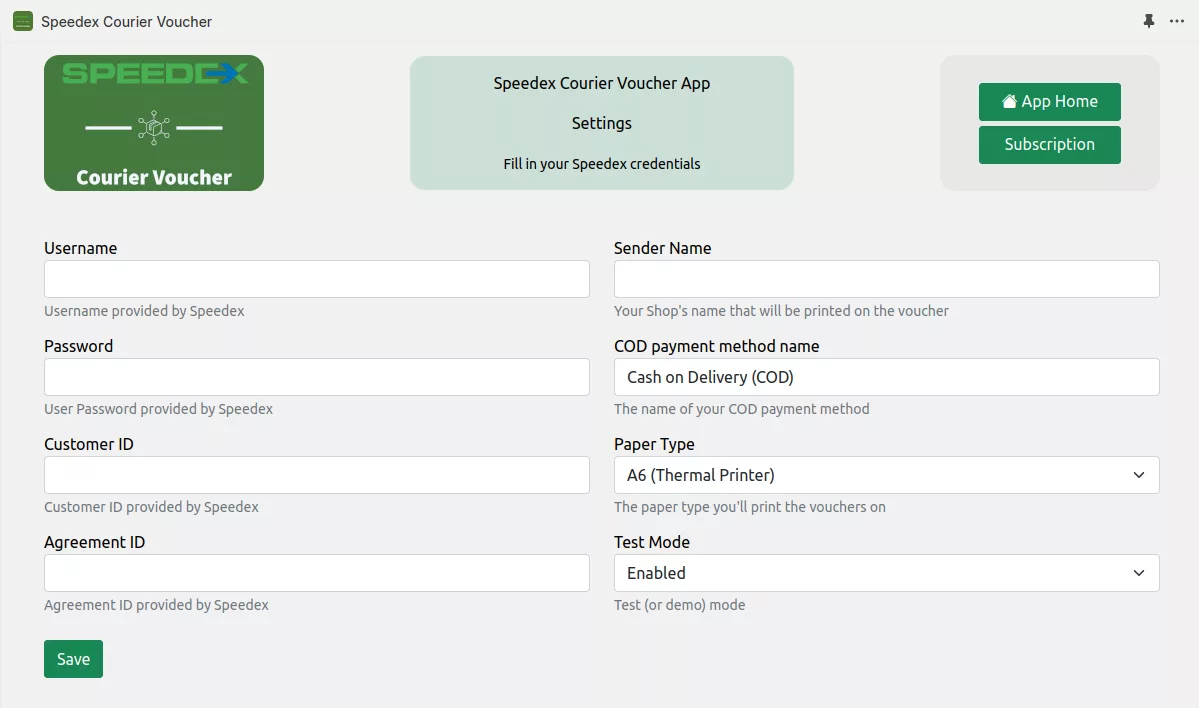
Enter the credentials you received from Speedex. Here's what each field means:
| Field | Description |
|---|---|
| Username | The user name Speedex gave you |
| Password | The password Speedex gave you |
| Customer ID | The customer ID Speedex gave you |
| Agreement ID | The agreement ID Speedex gave you |
| Sender Name | The sender name you want printed on the voucher. |
| COD payment method name | The name of your cash-on-delivery payment method in Shopify. |
| Print Type | The type of printer you'll print vouchers on. |
| Test Mode | Turns test (demo) mode on or off, if Speedex asks you to. |
Double-check that everything is correct, click Save, and you're ready to create vouchers!
4Create a voucher
To create a voucher for an order, open the order's details page (the Orders menu, then click the order you want to ship).
Then click the More Actions menu at the top right, as shown below:
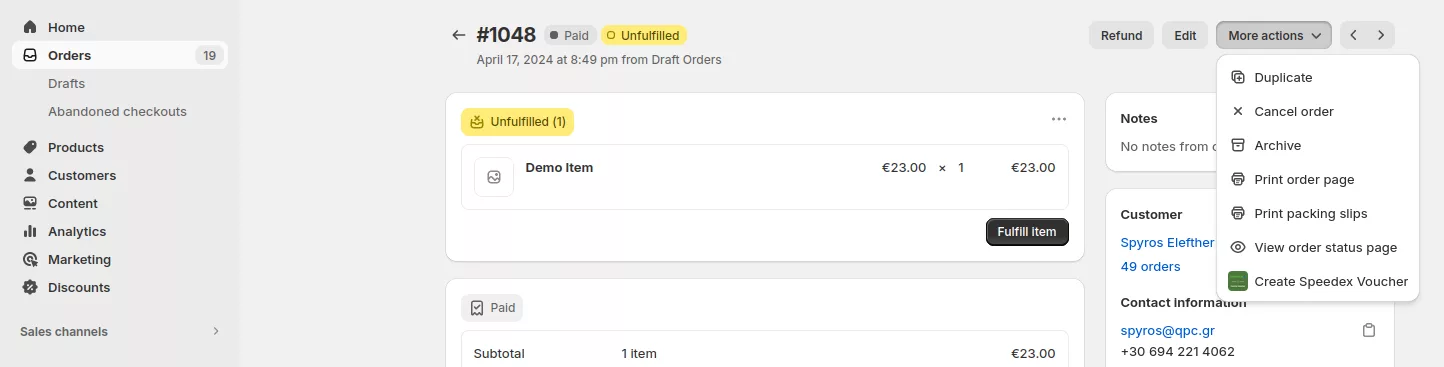
and choose Print Speedex Voucher. You'll see the following page:
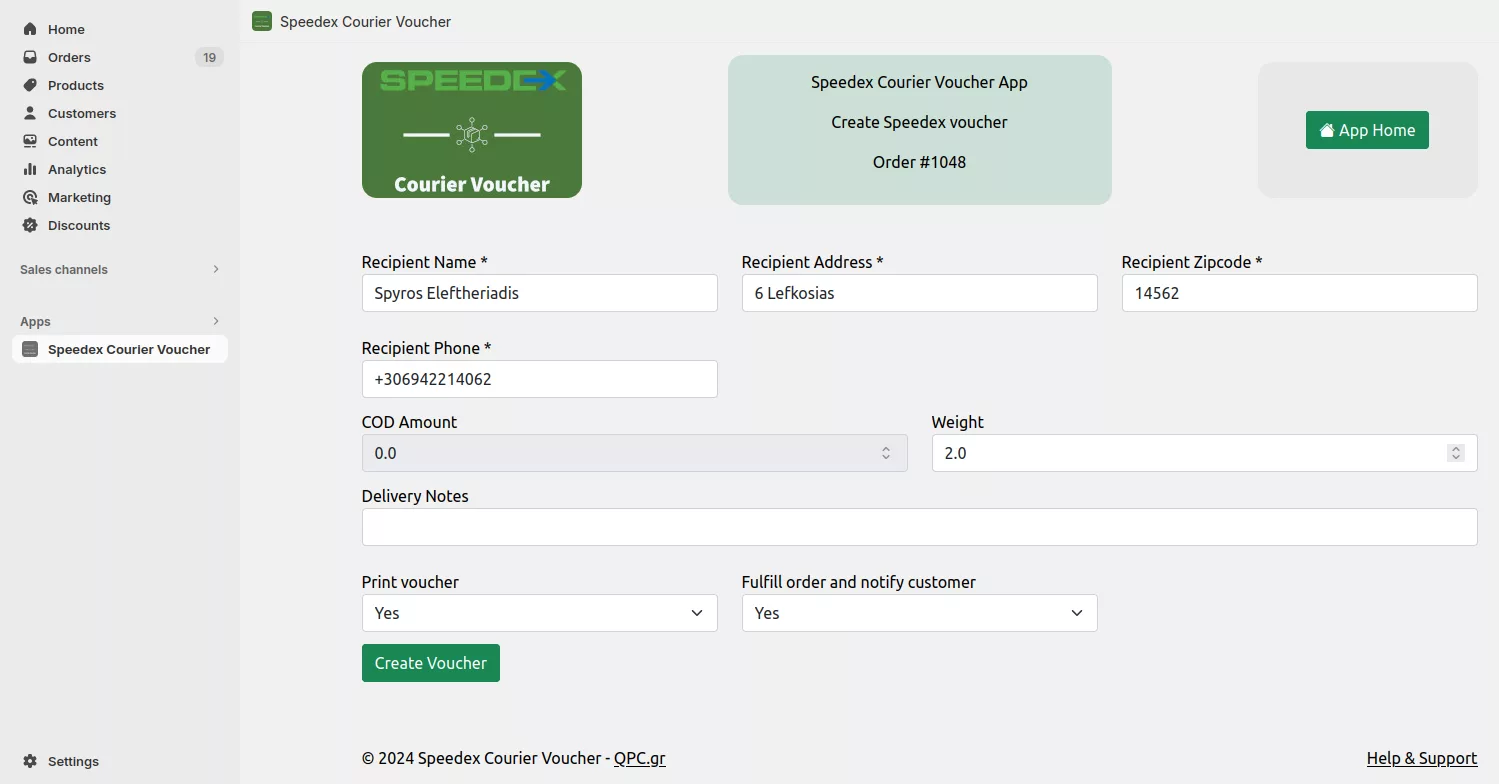
Check that the details are correct and fill in anything missing. You can add notes for the courier in the Delivery Notes field.
- Print voucher sets whether the voucher is printed right after it's created.
- Fulfill order and notify customer sets whether the order is marked as fulfilled in Shopify, which also sends your customer a shipping notification.
Both are set to yes by default. Click Create Voucher: the voucher is created and opens as a PDF in a new tab, ready to print.
5Today's vouchers
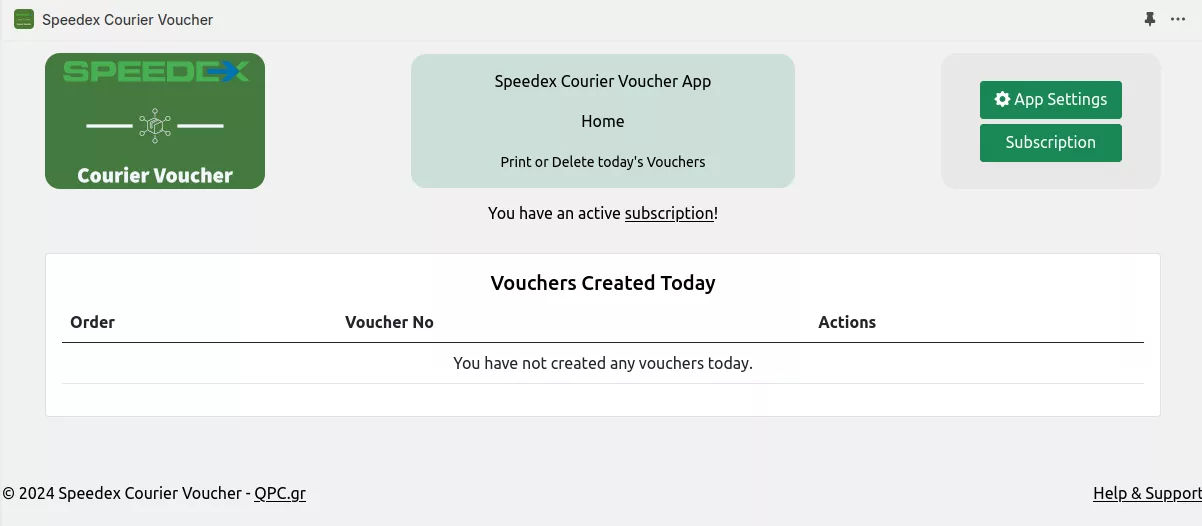
Open the app's home page: click Apps in the left-hand menu, then Speedex Courier Voucher. You'll see this page:
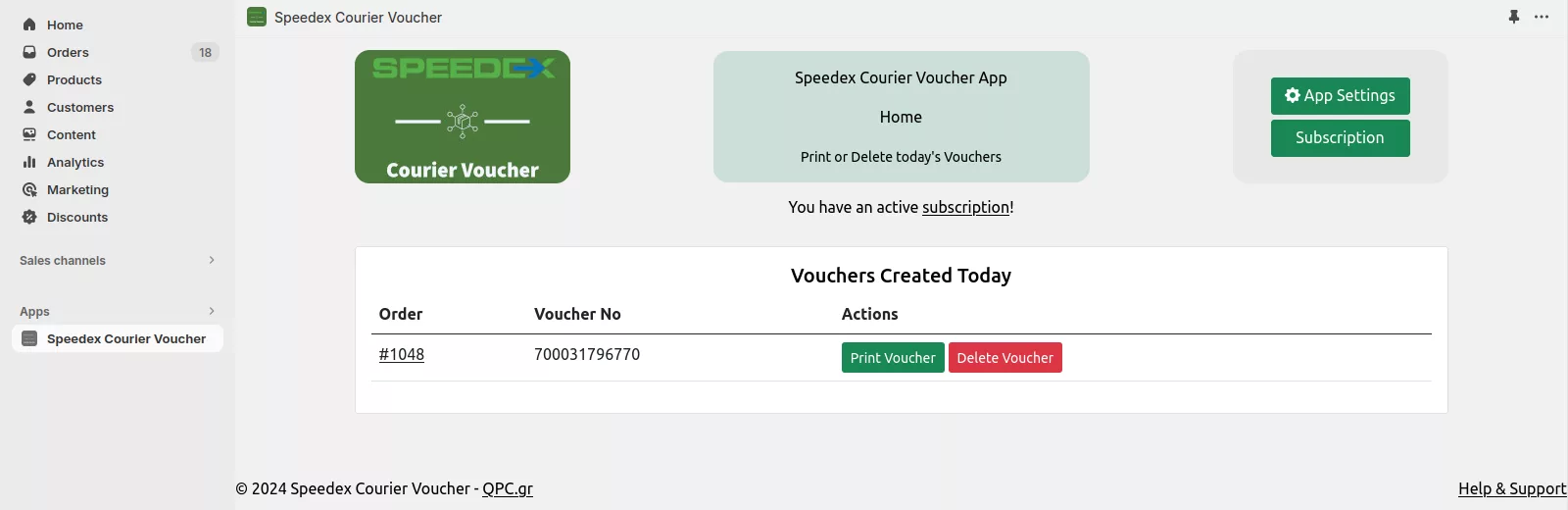
Here you can print any of today's vouchers you haven't printed yet, or delete a voucher.
Ready to get started?
Install Speedex Courier Voucher and create your first voucher today. The first 30 days are free.