
What it does
QPC CourierPrint is a desktop app that prints your Shopify store's ACS Courier vouchers automatically, as soon as they are created. It works with QPC's ACS Courier Voucher app.
You create the voucher in Shopify, and it comes out of the printer at your shop's computer without any clicks. Without QPC CourierPrint, the voucher opens as a PDF in a browser tab and someone has to print it by hand.
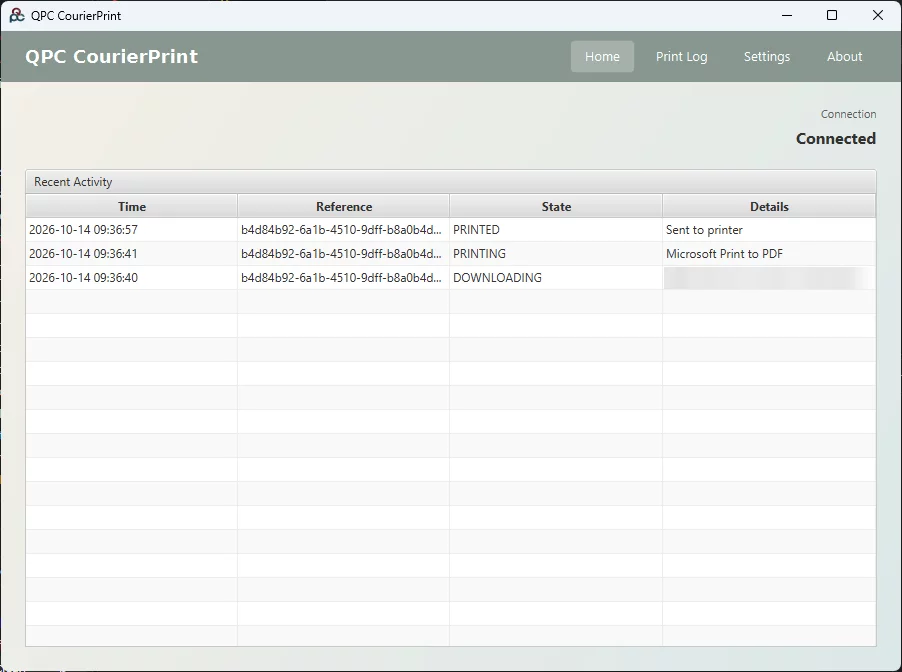
Who it's for: Shopify merchants who ship with ACS Courier and use the ACS Courier Voucher app, especially shops that print many vouchers a day.
Availability
- Automatic printing is part of the Basic Plan + Desktop Printing App plan of ACS Courier Voucher ($18/month). The Basic Plan ($10/month) doesn't include it. A free trial includes it only if it's a trial of the Basic Plan + Desktop Printing App plan.
- It works with ACS only, not Speedex.
- One computer per shop: vouchers print on the computer running QPC CourierPrint.
Features
Instant automatic printing
The app stays connected, and each new voucher prints within seconds, even when you create a batch.
Nothing gets lost
If the connection drops, the app reconnects on its own and catches up on vouchers it missed in the last 48 hours. Each voucher prints once, in the order it was created.
Full print settings
Printer, copies, page range, orientation, colour or black & white, paper size, tray, quality, margins, two-sided printing and pages per sheet.
Print Log
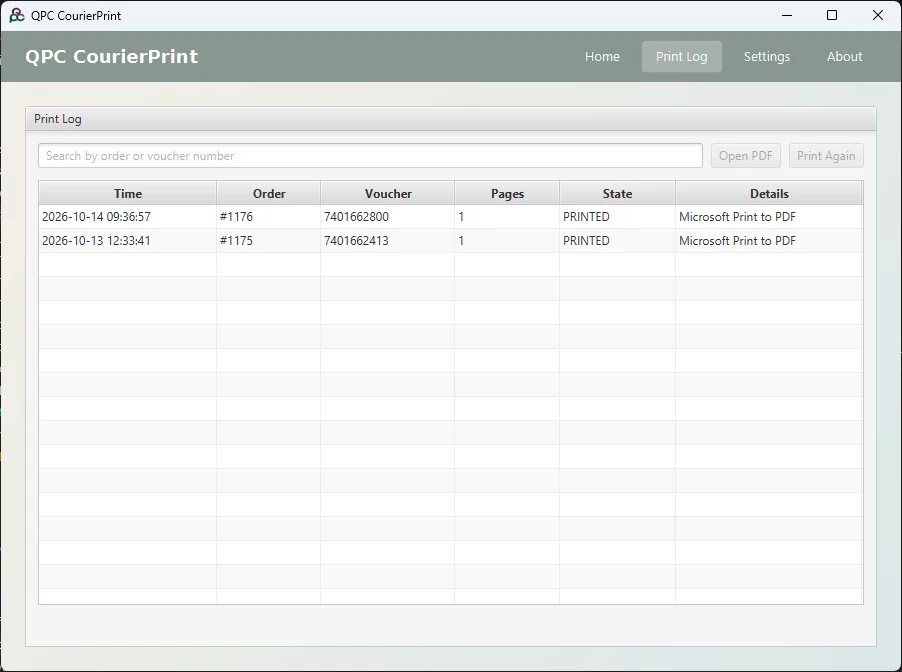
Every print from the last 14 days, searchable by order or voucher number. Select entries to Print Again or Open PDF.
Home screen
The connection status and recent activity at a glance.
Starts with your computer
With the Startup option on, the app starts quietly in the taskbar when you sign in to Windows.
Automatic updates
The app checks for new versions, downloads and verifies them, and installs them between prints. Then it restarts by itself.
Secure
Your computer connects with a private token. Generating a new token in Shopify disconnects the old computer straight away, which helps if a computer is replaced or lost.
Print settings
- Printer, number of copies and page range
- Portrait or landscape, colour or black & white
- Paper size, paper tray and print quality
- Margins: default, none, minimum or custom in mm
- One-sided or two-sided, pages per sheet
For every print, the Print Log shows the time, order, voucher number, pages and result.
Setup
- Download QPC CourierPrint and install it on the computer connected to your printer. The last installer page has a ticked Launch QPC CourierPrint box.
Download for Windows Version 1.0.0 · MSI · 56 MBBecause QPC CourierPrint is a new app, Windows may show a Windows protected your PC message on first install. Click More info, then Run anyway to continue. Windows shows this message for any new app it hasn't seen often yet. QPC CourierPrint is safe and there is no risk at all to your computer.
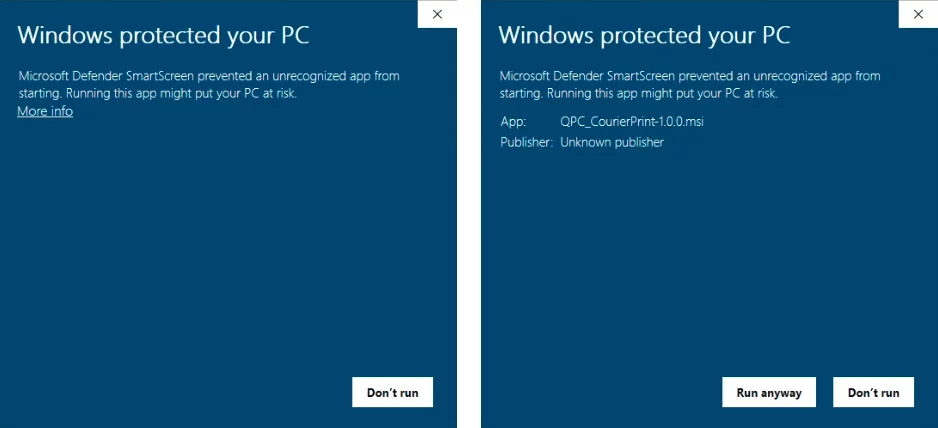
Click More info (left), then Run anyway (right) - Connect your shop: in the Shopify app, open Settings › Desktop Printing, set Print vouchers with the desktop app to Yes and press Generate token. The token is shown only once, so press Copy.

The QPC CourierPrint token in the Shopify app settings - In QPC CourierPrint, open Settings and paste the token into the Token field. Press Test Connection: you'll see your shop's name. Then press Save Settings.
- Choose your printer and how vouchers print, and save.
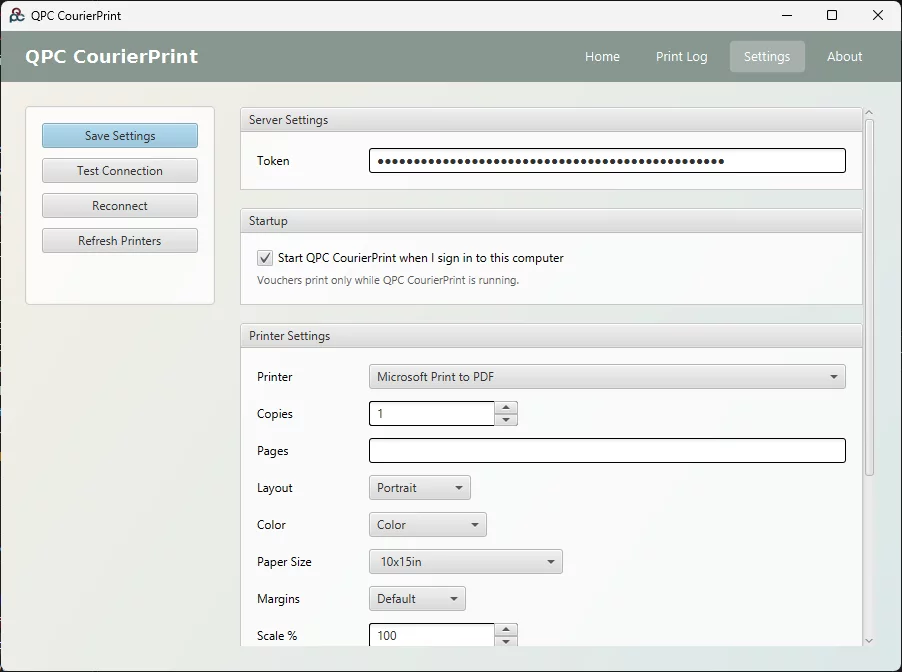
The QPC CourierPrint settings - Done! Every voucher you create in Shopify prints right away, including batches.
For the Shopify app settings, see also the ACS Courier Voucher guide.
Requirements and limitations
- Vouchers print only while QPC CourierPrint is running, and the computer has to be on and online. The start-with-your-computer option and the automatic catch-up cover most gaps.
- You need a printer installed on that computer.
- Windows 10 or 11 (64-bit). macOS and Linux versions are coming later.
- It needs an active Basic Plan + Desktop Printing App plan. If the shop changes plan or the token is replaced, the app stops and tells you why.
FAQ
What if QPC CourierPrint isn't running?
Vouchers created at that time open in the browser as before, so you can print them by hand. Start the app (or turn on start with your computer), and future vouchers will print automatically.
Can I print from two computers?
No, vouchers print on one computer per shop. If another computer connects, the one that connected most recently takes over.
The app stopped and asks for a token.
A new token was generated in the Shopify app, which disconnects the old one. Enter the new token in Settings.
Does it work with Speedex Courier Voucher?
No, QPC CourierPrint works with ACS vouchers only.
Is there a Mac version?
Not yet. For now, QPC CourierPrint is available for Windows only.
Automatic printing, starting today
Download QPC CourierPrint and connect it to the ACS Courier Voucher app in a few minutes.